























Corporate Planner 7.5.0: New point of entry, new web applications, first AI functions
With the 7.5.0 release, we're adding new functions to Corporate Planner and continuing to develop the existing web applications.
At the same time, to help you find your way around in the new environment, we've been updating our documentation with detailed descriptions of all functions.
How relevant each particular new feature is to you depends on the modules you use and your role within the system. This article will help you quickly identify the functions that are important to you and get started straight away.
It provides a compact overview of the most important new features:
-
- What's relevant for you?
- Where can you find the functions?
- How do you get started straight away?
New features by module and role
The new features relate to the web applications and are therefore available to all cloud customers.
What's new?
1. CP-Home: Your new point of entry
CP-Home provides you with a new, customizable home page. It serves as your central point of access to all web applications and resources.
What's this relevant for?
Customize your workspace to suit your needs with direct access to the applications and content you use regularly. Licensed modules and functions are preconfigured with links according to your user rights.
Quick Start: Personalize CP-Home
- Switch to edit mode
- Add new widgets (e.g. links)
- Arrange them as desired
- Save your view
In the manual: CP-Home documentation
Tip:
-
Use CP-Home to set up your personal point of entry for your day-to-day work – organized, for example, by department or by task.
Use case: Set up a department-specific dashboard for operational and financial management -
You can also add links to the customer portal and the Campus to your workspace.
2. Design Studio: Central management of structures and currencies
The Design Studio brings together key administrative and structural functions and makes them available via a web interface. The focus is on standardized, database-centered management of everything from currencies to financial structures.
2.1 Currency management
Currency management is centrally integrated within the Design Studio.
This is where you define and manage:
- currencies
- exchange rates
- currency sets
- validity periods for each currency
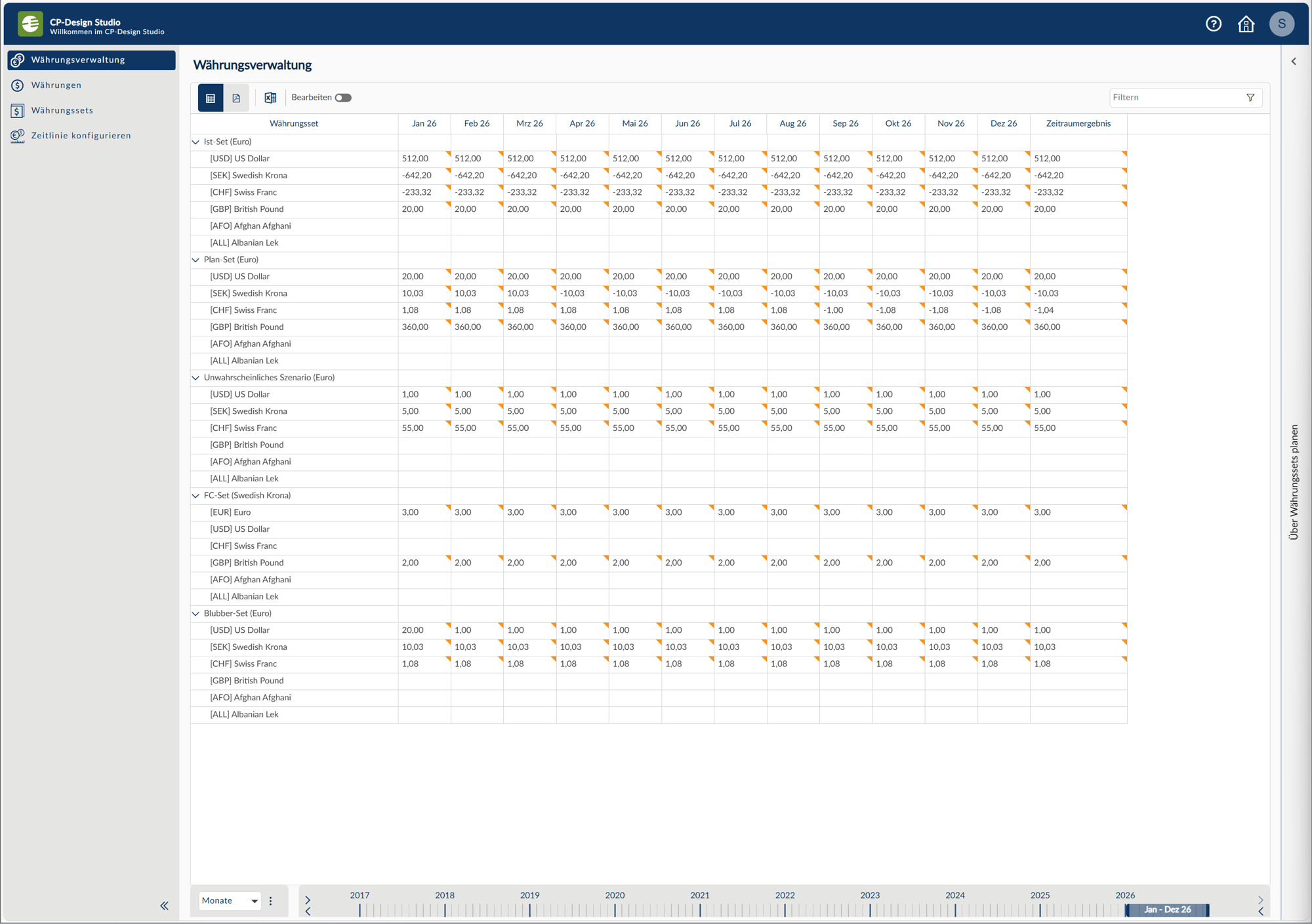
What's this relevant for?
All applications in which multiple currencies are used, e.g. in planning, reporting or consolidation.
Quick Start:
- Open the Design Studio
- Navigate to currency management
- Update your currencies and exchange rates centrally
In the manual: Documentation on currency management
2.2 Financial structures in the Design Studio
Structure editing in Finance has been revised and reorganized in the Design Studio. While the familiar concepts are unchanged, they have been standardized and in some cases renamed:
- Previously: classifications → Now: report structures
- For the central management of:
- charts of accounts
- report items
- accounts
- account assignment
Who is this relevant for?
Anyone who defines, updates or evaluates financial structures.
Quick Start:
- Open the Design Studio
- Select the desired database
- Navigate to structure editing
- Edit or expand existing structures
In the manual: Documentation on structure editing in Finance
New:
In the cloud, you can now let AI-powered account assignment help you assign accounts to report structures.
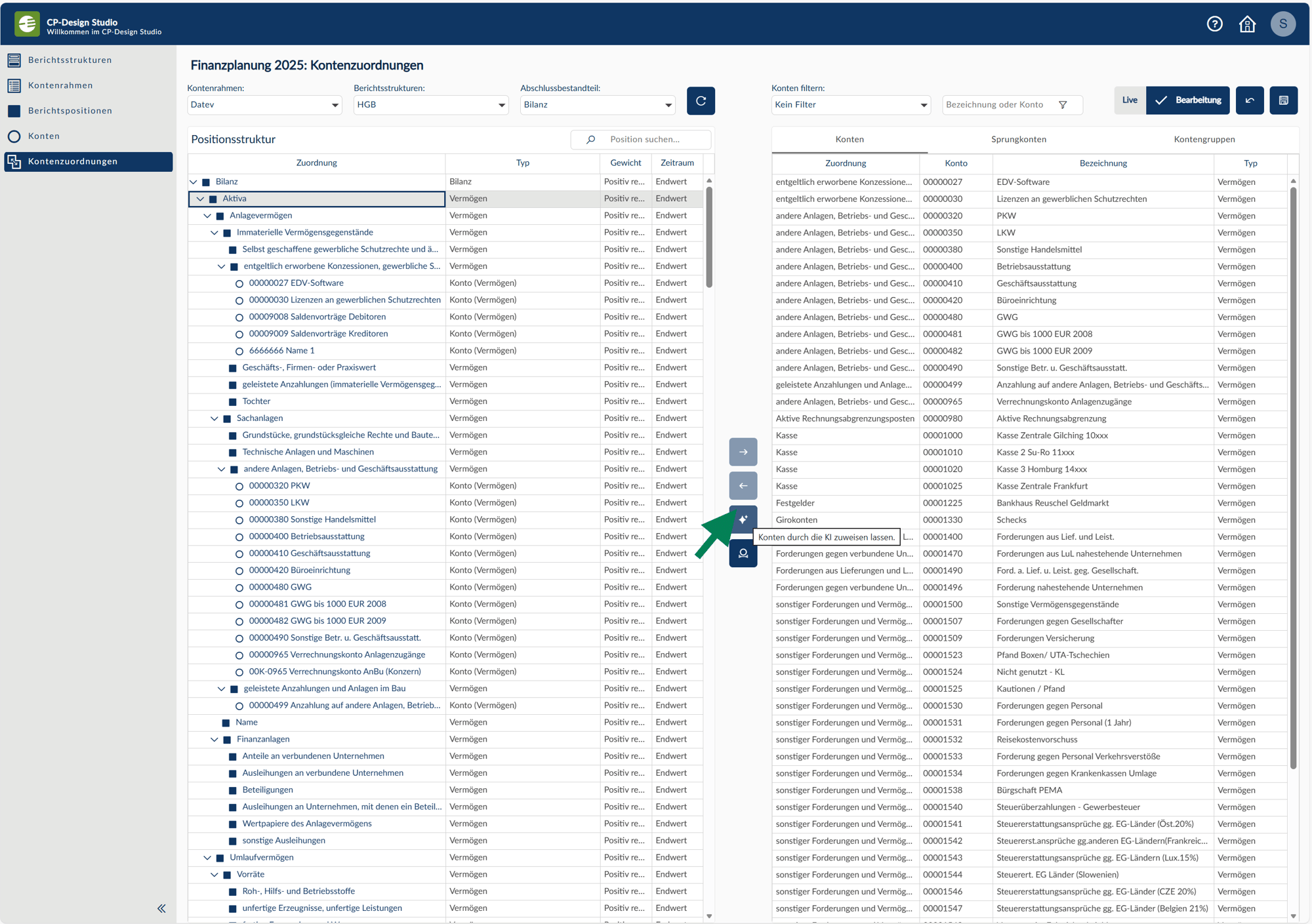
In the manual: Documentation on AI-powered account assignment
3. Other AI functions in the Web Client
Release 7.5.0 sees the first AI functions integrated directly into the work process.
These functions help you with analysis and planning based on existing data.
They are accessible via a wizard, which guides you step by step through the application.
3.1 Trend planning
Trend planning automatically generates forecasts based on historical data by recognizing patterns and developments and extrapolating them into future periods.
Where can you find the function in CP-Sales?
Web Client → Table view → AI functions → Planning by trend
Where can you find the function in CP-OC?
Web Client → Table view → Sidebar → Planning by trend
Quick Start:
- Open a table view (ideally a time series)
- Start the trend planning via the toolbar
- Follow the wizard (template, period, parameters)
- Check the preview and accept the values
Note:
The quality of the forecast depends largely on the data set on which it is based.
In the manual: Documentation on AI trend planning
3.2 Anomaly detection
Anomaly detection automatically identifies anomalies in your data. It recognizes deviations from the expected trend and makes them visible.
Where can you find the function?
Web Client → Table view → AI functions → Anomaly detection
Quick Start:
- Open a table view
- Start the anomaly detection
- Select the structure and parameters
- Analyse the detected anomalies
In the manual: Documentation for anomaly detection
Tips for getting started quickly
- Start with CP-Home and set up your personal point of entry
- Use the Design Studio to make adjustments centrally instead of at multiple locations
- Test the AI functions with known data first to get a feel for the results
- Familiarize yourself gradually with the new user interface – the underlying concepts have not changed
Links to further information
Details of all functions can be found in the current documentation: https://docs.corporate-planning.com/docs/next/cp/getting-started/